
Series: Using the GT-SP Touch Panel TFT Display with Arduino
Setting Processing According to the Touch State in the Button Object
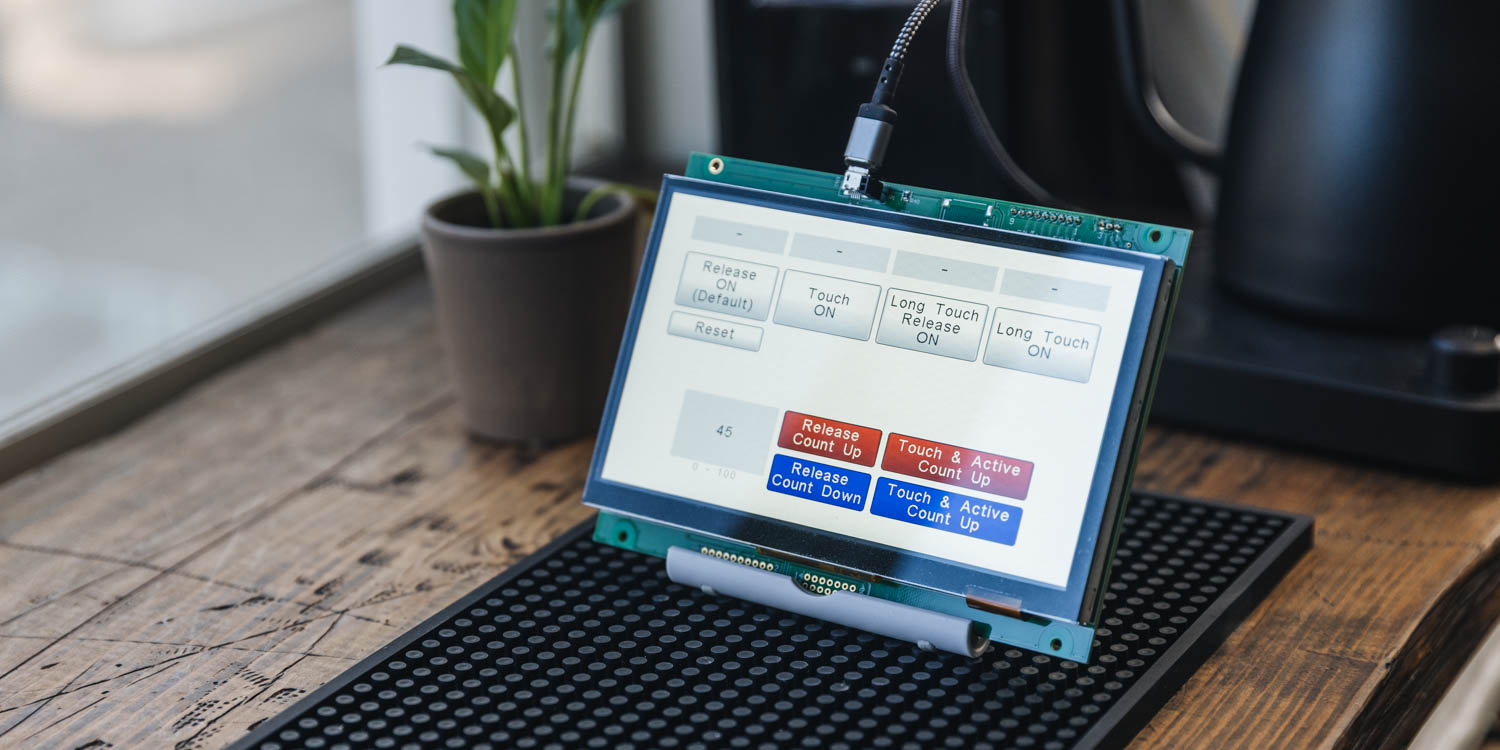
Table of Contents
DownloadDownload sample project & program (for GT Design Studio & Arduino)
Hello everyone, I’m @kissaten, a beginner in electronics. In this series, I’m explaining the process of working on various projects using a 7-inch touch display (GT-SP series “GTWV070S3A00P”).
This time, we will challenge complex touch actions that switch operation based on the time and state of the operation, not just when the button is pressed and released. I will introduce the properties “Event Trigger Type” and “Long Touch Time,” as well as the method for branching operations using the event action “Event_Case”
The button object in the GT-SP series executes actions within the event simply by pressing and releasing the button, even without using “Event_Case”. However, in industrial equipment interfaces, flexible control based on operation time and state, such as “switching pages with a short press” or “continuously increasing or decreasing values with a long press,” is required. In this article, I will explain the important points for realizing this kind of advanced touch control clearly, based on the specifications.
Properties for Advanced Touch Control
To perform advanced touch control, it is necessary to link the settings of the Button object’s properties with event actions. Here, we explain the two properties that control the “trigger” and “time” of touch events.
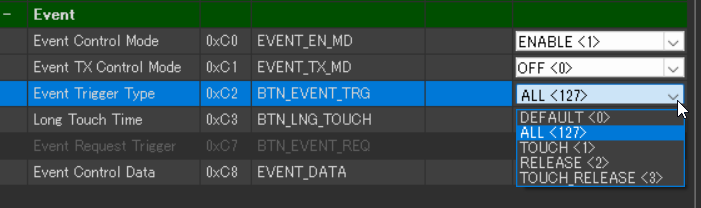
Event Trigger Type: Setting the “Trigger for Events”
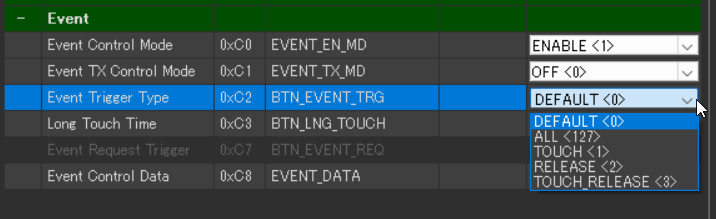
The “Event Trigger Type” property of the Button object specifies the trigger (occurrence condition) that executes the event processing. This plays the role of defining what kind of operation is to be detected.
|
Setting Value |
Detection Condition |
Notes |
|---|---|---|
|
DEFAULT |
Object’s default trigger (RELEASE for BUTTON) |
Used for standard event processing. |
|
TOUCH |
The moment the object is touched |
Detects Touch ON. |
|
RELEASE |
The moment the finger is lifted from the object |
Detects Touch OFF. |
|
TOUCH_RELEASE |
The moment it is touched and the moment it is lifted |
Executes the event for both TOUCH and RELEASE. |
|
CHANGE |
When the object’s value (VAL) changes |
Valid for objects like Sliders. |
|
ALL |
All touch operations on the object |
「Recommended when combining with the “Event Case” action to perform flexible control. |
Long Touch Time: Setting the “Long Press Threshold” and “Continuous Execution Cycle”
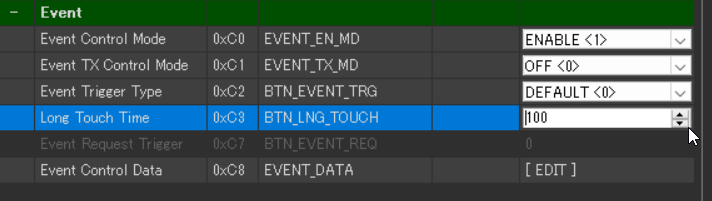
The “Long Touch Time” property of the Button object specifies the time for the long press judgment and the continuous execution cycle. It controls the operation of the two event actions introduced later:
- The execution cycle of TOUCH ACTIVE (continuous execution during long press).
- The judgment time for RELEASE LONG (release after long press).
|
Setting Value |
Time |
|---|---|
|
1 |
10ms |
|
100 |
1秒(1000ms) |
Branching Operations via Event Action
We will introduce how to write the processing that corresponds to the “trigger” set with “Event Trigger Type”.
Event_Case: Describing Actions Based on Touch Action
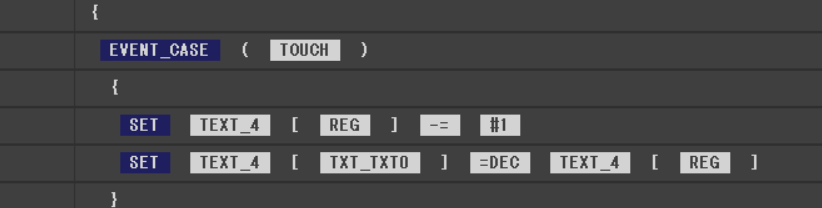
When an action within () is detected, the processing within {} below it is executed.
For button objects, pressing and releasing the button will execute the action within the event even without using “Event_Case”. However, use this when you want to execute different processing for unusual touch operations, such as long presses or moving outside the button area.
|
Event_Case |
Detection Condition and Operation |
|---|---|
|
TOUCH |
Executed the moment the object is touched. |
|
TOUCH ACTIVE |
While being touched, it continuously loops and executes. The execution cycle is specified by the “Long Touch Time” property. |
|
RELEASE |
Executed when the finger is lifted from the object. |
|
RELEASE LONG |
Executed when the object is touched for longer than the time specified by the “Long Touch Time” property, and then the finger is lifted. |
|
MOVE_OUT |
Executed when the object is touched, the finger is moved outside the object’s range, and then lifted |
Important Note: When using the “Event_Case” event to detect various special touch operations, it is recommended to set the “Event Trigger Type” property to “All”. This is because the process will not be executed if the corresponding event trigger is not enabled.
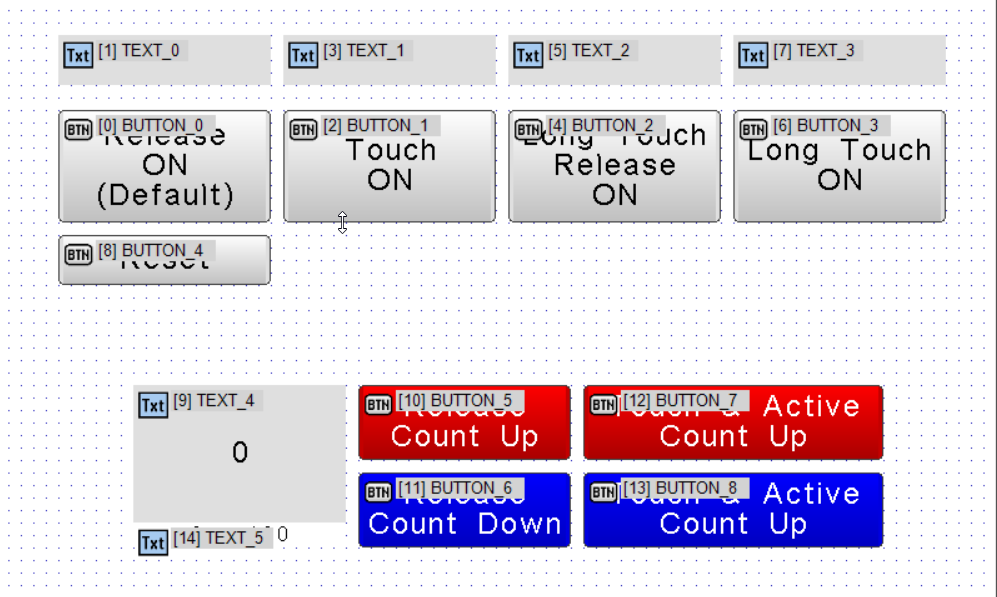
Creating the Project
We will introduce the property settings and action descriptions for each Button object implemented in the project.
DownloadDownload sample project & program (for GT Design Studio & Arduino)
BUTTON_0:Release(Event Trigger Type: DEFAULT)
The text display switches to “ON” the moment the button is pressed and the finger is lifted (Standard Button Function).
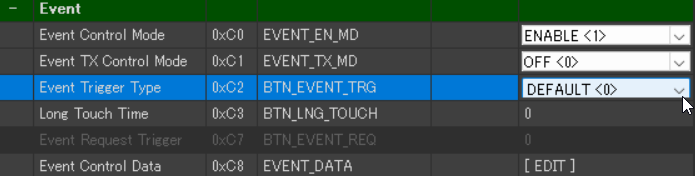
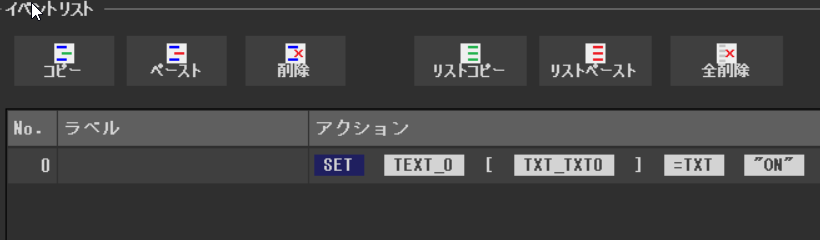
The Event Trigger Type is set to DEFAULT. This executes the action in the event list upon the button’s default trigger, which is RELEASE (the moment the finger is lifted). Event_Case is not used.
When the button is pressed, and the finger is lifted, the action in event list No. 0 is executed. Specifically, the string “ON” is set to TEXT_0’s display string property (TXT_TXT0), and “ON” is displayed on the text object above the button.
BUTTON_1: Touch (Event Trigger Type: TOUCH)
The text display switches to “ON” the moment the button is touched.
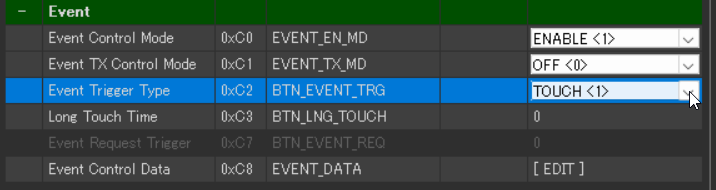
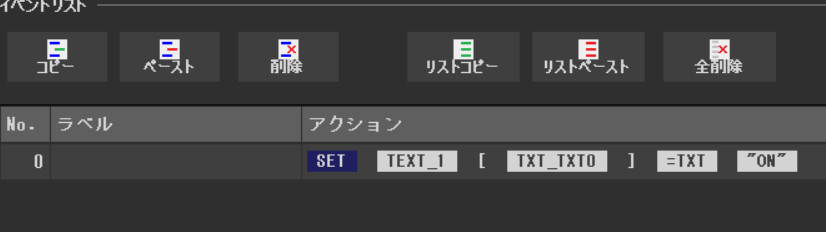
The Event Trigger Type is set to TOUCH. This executes the action in the event list the moment the button is pressed, or when touch ON occurs. Event_Case is not used.
When the finger touches the button, the action in the event list is executed. Specifically, the action sets the string “ON” to TEXT_1’s display string property (TXT_TXT0), and “ON” is displayed on the text object above the button. This is a basic function used when you want to switch the state immediately, without waiting for the finger to be lifted.
BUTTON_2: Long Touch Release (Event Case: RELEASE LONG)
The text display switches to “ON” the moment the finger is lifted after pressing and holding for longer than the set time (1 second).
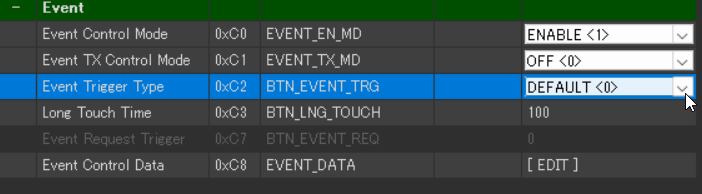
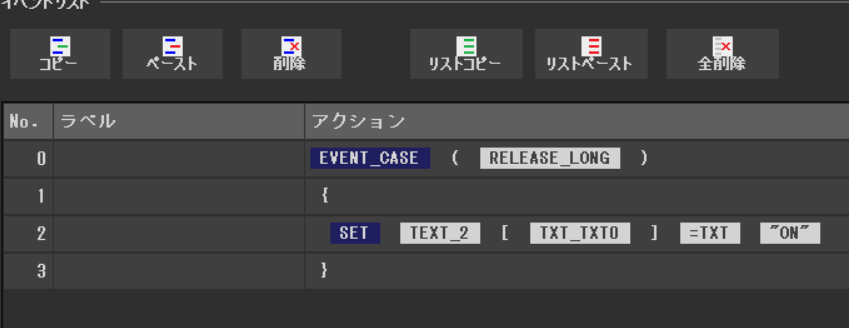
The Event Trigger Type is set to DEFAULT. The special long press end operation is detected using Event_Case RELEASE LONG. Long Touch Time is set to 100 (1000ms), which is the minimum time for long press judgment. The Event Case executes when the button has been pressed for the duration of the Long Touch Time amount of time or more, and the finger is lifted.
When this Event_Case executes, the string “ON” is set to TEXT_2’s display string property (TXT_TXT0), and “ON” is displayed on the text object. This is effective when you want to finalize a specific setting only with an operation (long press) that is longer than the time set in Long Touch Time. This setting does not accept continuous touch (TOUCH ACTIVE).
BUTTON_3: Long Touch (Event Case: TOUCH ACTIVE and RELEASE)
The text display switches to “ON” at the first timing when the set time (Long Touch Time) has elapsed after touching the button.
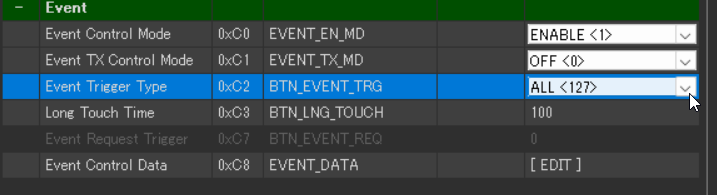
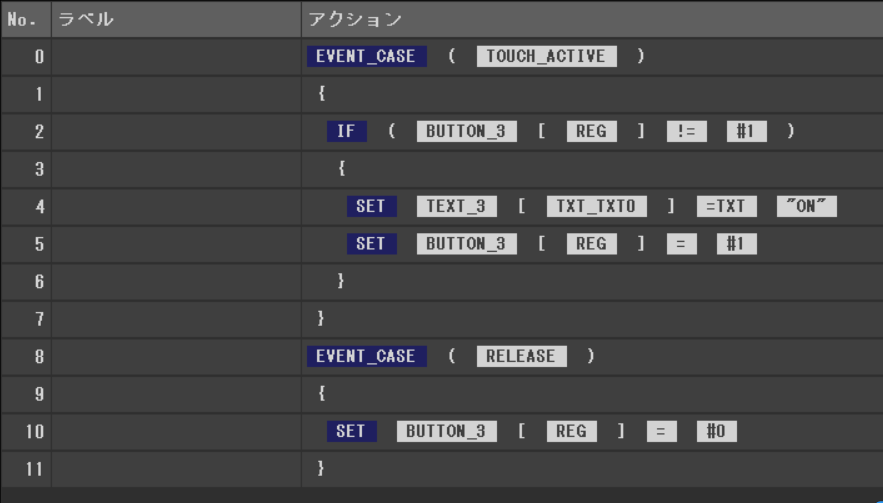
The Event Trigger Type is set to ALL. Event_Case TOUCH ACTIVE is used to loop the processing while the button is pressed for the duration of the Long Touch Time.
It confirms that the button’s REG (work register) is not in the “ON” state (#1). If not yet executed, it displays “ON” on the text object above the button and simultaneously sets the REG value to “ON” (#1). This prevents the ON process from being duplicated even if the long press continues. Subsequently, Event_Case RELEASE is used to reset the REG value to “OFF” (#0) the moment the finger is lifted, preparing for the next touch. This is an effective technique for single-time state confirmation via long press, avoiding multiple executions of the process by continuous execution.
BUTTON_5: Release Count Up (Event Trigger Type: DEFAULT)
The displayed value increases by 1 each time the button is released (No long press function).
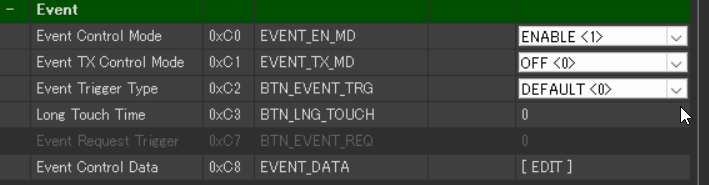
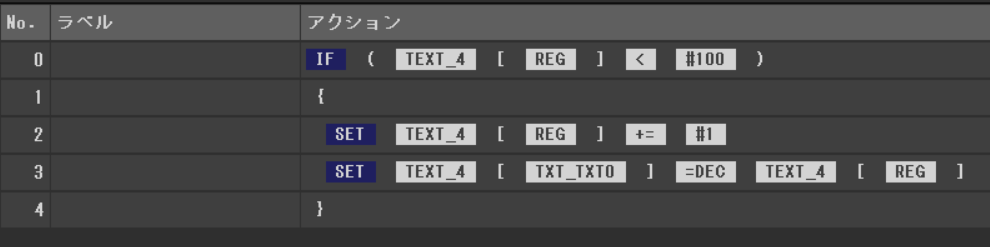
The Event Trigger Type is set to DEFAULT. This executes the action in the event list upon RELEASE. Long Touch Time is set to 0, so the long press function is not used.
An IF statement first checks if the value in TEXT_4’s REG (work register) is less than the upper limit (#100). If the value is less than the upper limit, 1 is added to the REG value. Then, the updated REG value is written to TEXT_4’s display string property (TXT_TXT0) as a decimal (DEC), updating the number on the screen. This is a basic counter function implementation example for increasing values via touch operation.
BUTTON_6: Release Count Down (Event Trigger Type: DEFAULT)
The displayed value decreases by 1 each time the button is released (No long press function).
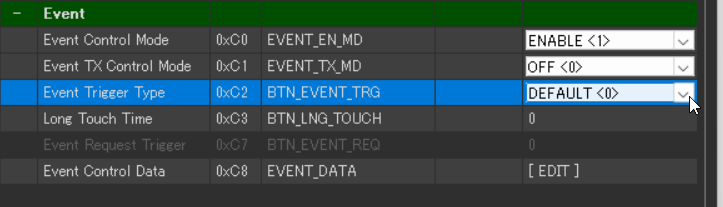
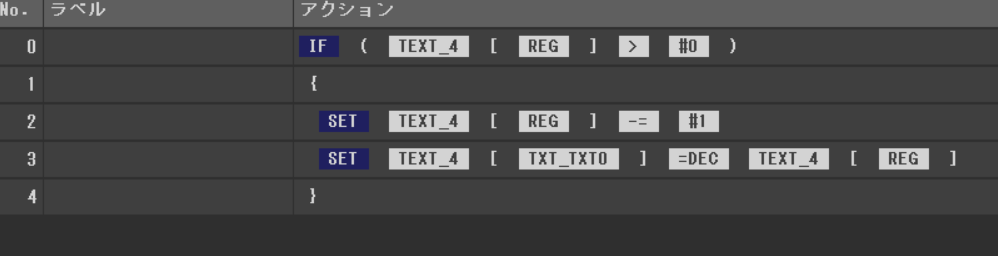
The Event Trigger Type is set to DEFAULT. This executes the action in the event list upon RELEASE. Long Touch Time is set to 0, so the long press function is not used.
An IF statement first checks if the value in TEXT_4’s REG (work register) is greater than the lower limit (#0). If the value is greater than the lower limit, 1 is subtracted from the REG value. Then, the updated REG value is written to TEXT_4’s display string property (TXT_TXT0) as a decimal (DEC), updating the number on the screen. This is a basic counter function implementation example for decreasing values via touch operation.
BUTTON_7 : Touch & Active Count Up(Event Case: TOUCHとTOUCH ACTIVE)
Pressing briefly adds 1, and continuing to press continuously increases the value.
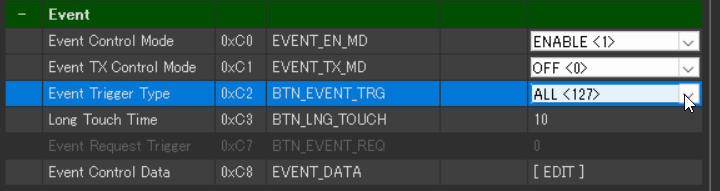
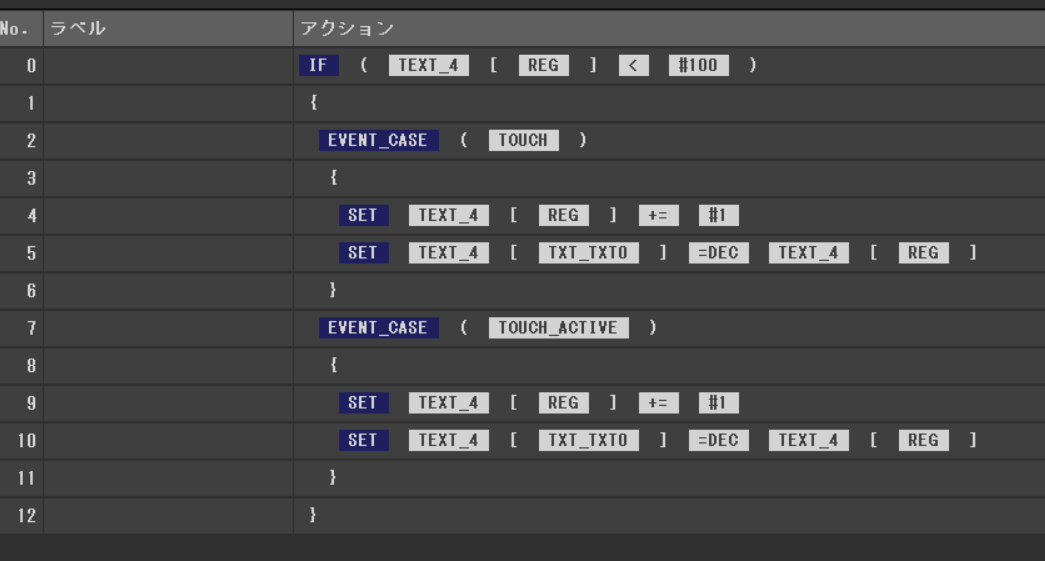
The Event Trigger Type is ALL, detecting all touch operations. Long Touch Time is 10 (100ms), which is the continuous execution cycle during long press. The entire process is enclosed in an IF statement checking if TEXT_4’s REG is less than the upper limit (#100).
- TOUCH (Moment of Touch) Addition
Event_Case TOUCH confirms the upper limit is not yet reached and adds 1 to REG only once at the moment the button is touched. The updated value is then displayed on the screen text (TXT_TXT0). This ensures a definite increase of 1 even with a brief press.
- TOUCH ACTIVE (Continuous Execution during Long Press) Addition
Event_Case TOUCH ACTIVE adds 1 to REG periodically (every 100ms) while the button is continuously pressed. The updated value is displayed in the screen text.
This implements a user-friendly function for numerical value changes, where a brief press adds 1, and continuing to press quickly adds values continuously.
BUTTON_8: Touch & Active Count Down (Event Case: TOUCH and TOUCH ACTIVE)
Pressing briefly subtracts 1, and continuing to press continuously decreases the value.
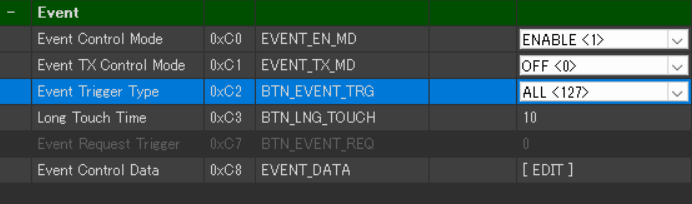
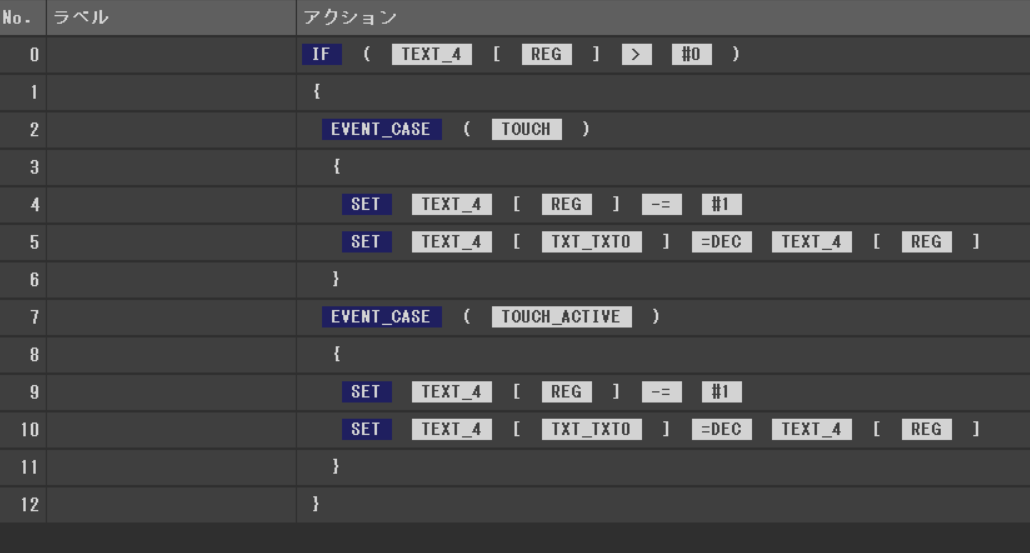
The Event Trigger Type is ALL, detecting all touch operations. Long Touch Time is set to 10 (100ms), which is the continuous execution cycle during long press. The entire process is enclosed in an IF statement checking if the value in TEXT_4’s REG (work register) is greater than the lower limit (#0).
- TOUCH (Moment of Touch) Subtraction
Event_Case TOUCH confirms the lower limit is exceeded and subtracts 1 from REG only once at the moment the button is touched. The updated value is then displayed on the screen text (TXT_TXT0). This ensures a definite decrease of 1 even with a brief press.
- TOUCH ACTIVE (Continuous Execution during Long Press) Subtraction
Event_Case TOUCH ACTIVE subtracts 1 from REG periodically (every 100ms) while the button is continuously pressed. The updated value is displayed in the screen text.
This implements a user-friendly function for numerical value changes, where a brief press subtracts 1, and continuing to press quickly subtracts values continuously.
Summary
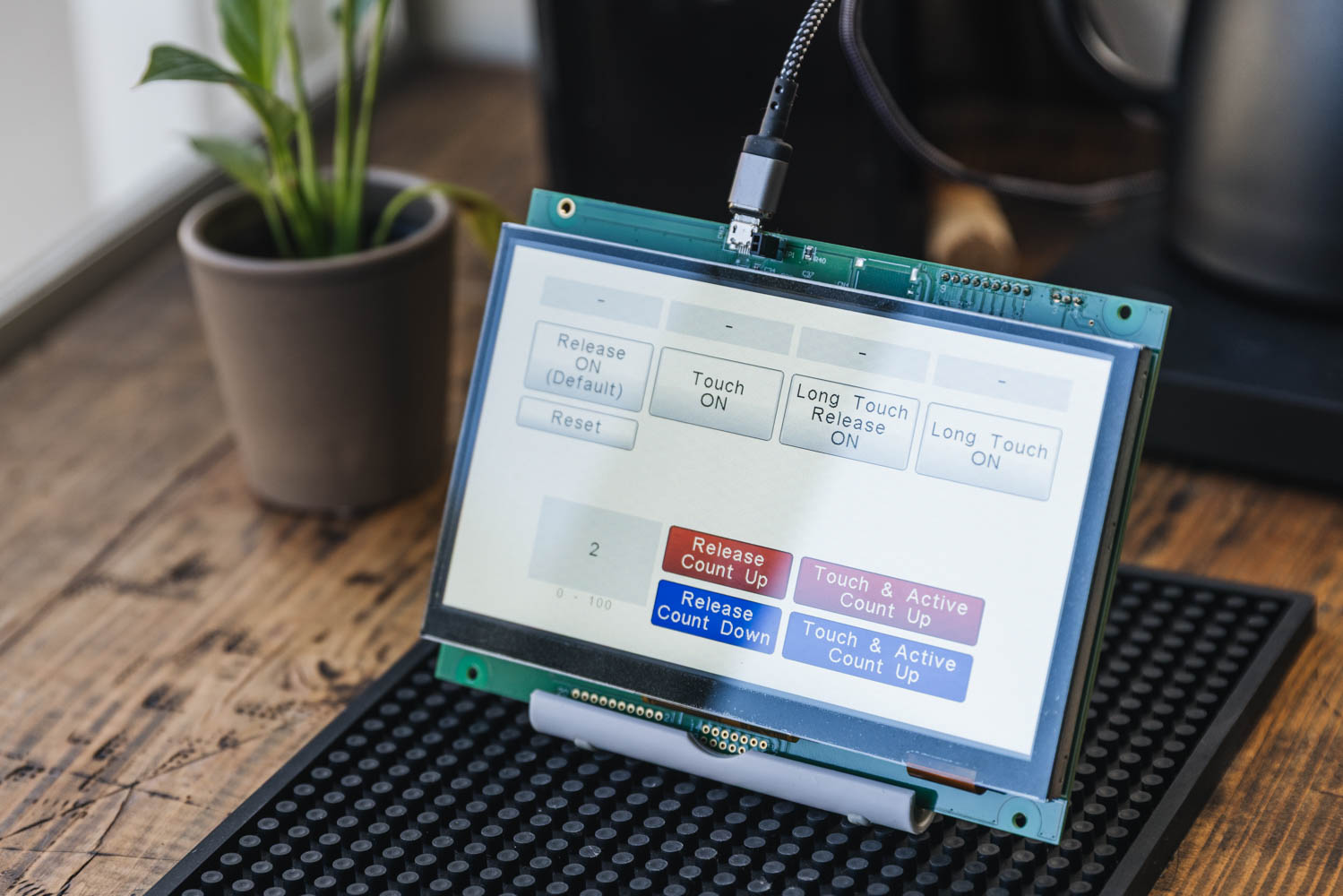
The touch control of the GT-SP series can set processing according to the touch state by combining the “Event Trigger Type” and “Long Touch Time” properties with the “Event_Case” action. This approach realizes highly flexible GUI operation for various industrial and creative projects.