
Series: Using the GT-SP Touch Panel TFT Display with Arduino
Specifying Images on the GT-SP Using an Image Definition File
Table of Contents
DownloadDownload sample project & program (for GT Design Studio & Arduino)
Hello everyone, I’m @kissaten, a beginner in electronics. In this series, I’m explaining the process of connecting a 7-inch touch display (GT-SP series “GTWV070S3A00P”) to an Arduino and working on various projects.
In the previous article, we registered multiple images in GT Design Studio and displayed an animation on the GT-SP by specifying the image addresses sequentially from the Arduino.
This time, we will use the same animation and an image definition file generated by Build in GT Design Studio to specify the images to display using definitions corresponding to the image file names.
Using the Previous Project
This time, we will use the autopompanimation project created in the previous article as is.
The project contains 10 registered images, from pump_01.png to pump_10.png.
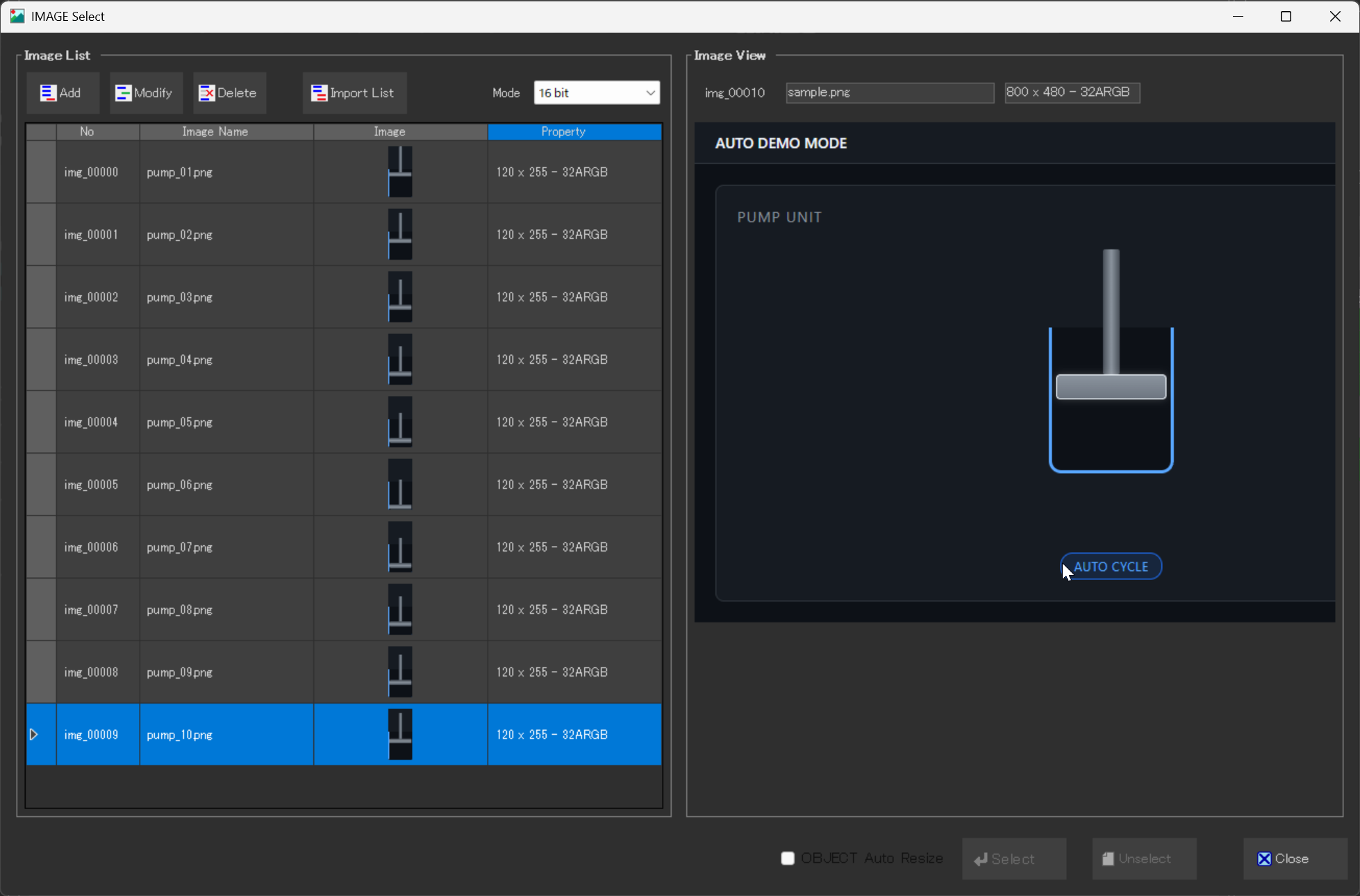
On the image registration screen in GT Design Studio, each image is assigned a number such as img_00000 or img_00001.
In this project, the images are registered as follows.
|
1 2 3 4 5 6 7 |
img_00000 → pump_01.png img_00001 → pump_02.png img_00002 → pump_03.png ... img_00009 → pump_10.png |
In the previous article, we opened the _IMG.csv file generated after Build, checked the address assigned to each image, and set those addresses in the Arduino program.
This time, we will use an image definition file generated by the same Build process.
Checking the Image Definition File Generated by Build
When the project is built in GT Design Studio, various definition files are generated in the project folder.
The image definition file used in this article is generated in the following folder.
|
1 2 3 |
autopompanimation_prj_files └─ autopompanimation_lib └─ autopompanimation_IMG.h |
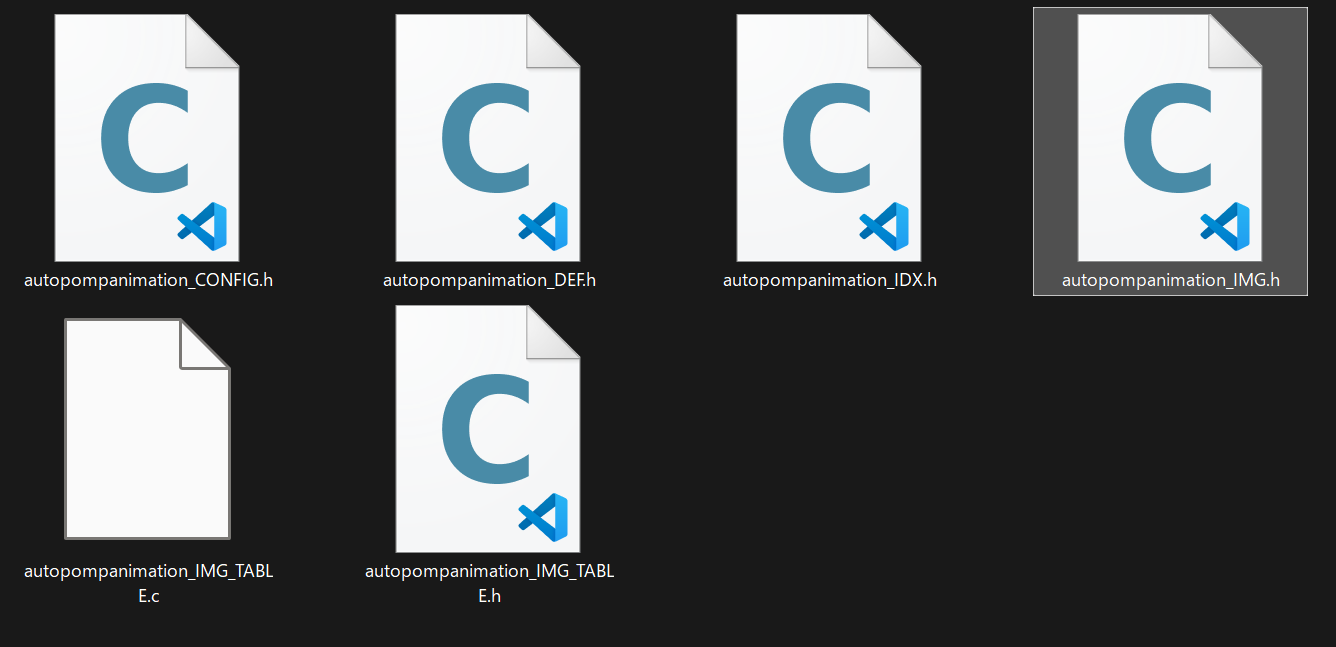
When you open autopompanimation_IMG.h, you can check definitions such as the image number and image address for the images registered in GT Design Studio.
For example, the following definitions are generated for pump_01.png.

|
1 2 3 4 |
#define GUI_DEF_IMG_pump_01_IDX ( 0 ) #define GUI_DEF_IMG_pump_01_AD ( _AUTOPOMPANIMATION_IMG_BASE_AD + 0x00040020 ) #define GUI_DEF_IMG_pump_01_SIZE ( 0x0000ef24 ) #define GUI_DEF_IMG_pump_01_NAME_AD ( _AUTOPOMPANIMATION_IMG_BASE_AD + 0x00040000 ) |
The image address used in this article is defined as follows.
GUI_DEF_IMG_pump_01_AD
We will use this definition in the Arduino program.
Similarly, definitions corresponding to each image file name are generated for pump_02.png through pump_10.png.
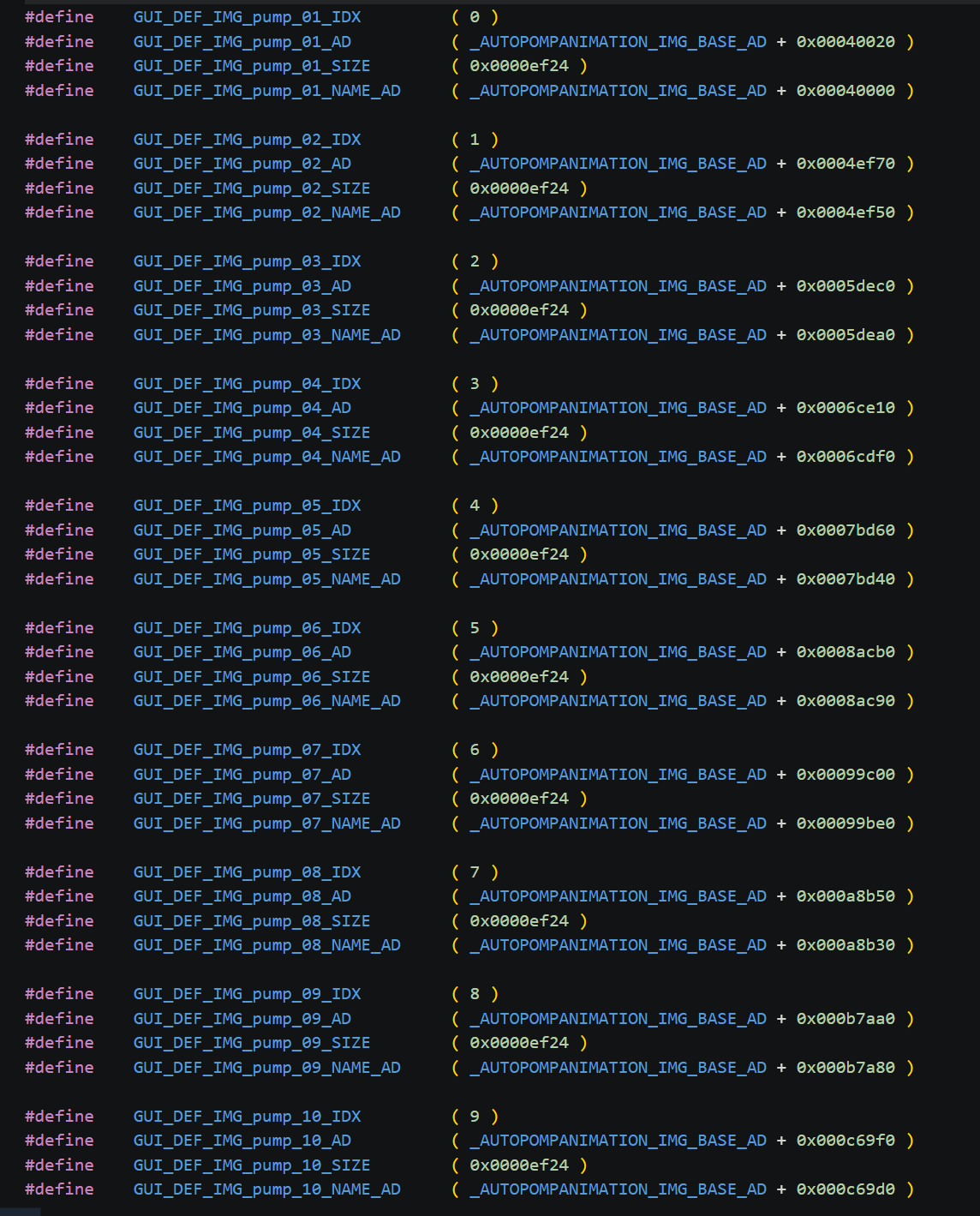
In autopompanimation_IMG.h, _AD definitions corresponding to the image names pump_01 through pump_10 are generated.
Using the Image Definition File in the Arduino Program
Next, configure the Arduino sketch so that autopompanimation_IMG.h can be used from the Arduino program.
In this example, place the Arduino sketch and autopompanimation_IMG.h in the same folder.
|
1 2 3 |
autopompanimation_arduino ├─ autopompanimation_arduino.ino └─ autopompanimation_IMG.h |
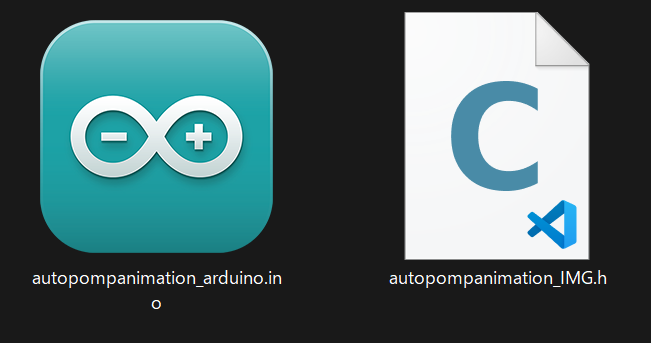
In the Arduino program, include the image definition file as follows.
#include "autopompanimation_IMG.h"
This allows the image addresses defined in autopompanimation_IMG.h to be used in the Arduino program.
Arduino Program
After placing the image definition file in the Arduino sketch folder, create the program to upload to the Arduino.
As in the previous article, this program displays an animation by switching through 10 images in sequence.
However, instead of writing the image addresses directly in the program, we will use the definitions corresponding to the image names generated in autopompanimation_IMG.h.
DownloadDownload sample project & program (for GT Design Studio & Arduino)
|
1 2 3 4 5 6 7 8 9 10 11 12 13 14 15 16 17 18 19 20 21 22 23 24 25 26 27 28 29 30 31 32 33 34 35 36 37 38 39 40 41 42 43 44 45 46 47 48 49 50 51 52 53 54 55 56 57 58 59 60 61 62 63 64 65 66 67 68 69 70 71 72 73 74 75 76 77 78 79 80 81 82 83 84 85 86 87 88 89 90 91 92 93 94 95 96 97 98 99 100 101 102 103 104 105 106 107 108 109 110 111 112 113 114 115 116 117 118 119 120 121 122 123 124 125 126 127 128 129 130 131 132 133 134 135 136 137 138 139 140 141 142 143 144 145 146 147 148 149 150 151 152 153 154 155 156 157 158 159 160 161 162 163 164 165 166 167 168 169 170 171 172 173 174 175 176 177 |
#include <string.h> <strong>#include "autopompanimation_IMG.h"</strong> // ピン接続 | Pin assign #define GT_DTR 4 #define GT_DSR 6 #define GT_RESET 5 #define GT_TRDY 7 // 画像アドレスを格納する配列 (10コマ分) | Array storing image addresses (10 frames) unsigned long pump_img[10]; int current_frame = 0; void setup() { pinMode(GT_DTR, INPUT); pinMode(GT_DSR, OUTPUT); pinMode(GT_RESET, OUTPUT); pinMode(GT_TRDY, INPUT); digitalWrite(GT_RESET, HIGH); digitalWrite(GT_DSR, LOW); Serial.begin(38400); Serial.setTimeout(100); // autopompanimation_IMG.hの定義から画像アドレスを取得 | Get image addresses from definitions in autopompanimation_IMG.h pump_img[0] = GUI_DEF_IMG_pump_01_AD; pump_img[1] = GUI_DEF_IMG_pump_02_AD; pump_img[2] = GUI_DEF_IMG_pump_03_AD; pump_img[3] = GUI_DEF_IMG_pump_04_AD; pump_img[4] = GUI_DEF_IMG_pump_05_AD; pump_img[5] = GUI_DEF_IMG_pump_06_AD; pump_img[6] = GUI_DEF_IMG_pump_07_AD; pump_img[7] = GUI_DEF_IMG_pump_08_AD; pump_img[8] = GUI_DEF_IMG_pump_09_AD; pump_img[9] = GUI_DEF_IMG_pump_10_AD; } void loop() { // オブジェクト0、プロパティ0x48(Image0)、データ長4バイトで画像アドレスを送信 | Send image address to Object 0, Property 0x48 (Image0), with a data length of 4 bytes gtsp_ObjPrpSet_val(0, 0x48, 4, pump_img[current_frame]); current_frame++; if (current_frame >= 10){ current_frame = 0; } // フレームリセット | Reset frame // アニメーションのコマ送り間隔 | Animation frame interval delay(100); } /********************** 関数 | Function **********************/ //////////////////////////////////////////////////// // オブジェクト制御コマンド-プロパティ設定(数値用) | Object Control Command -Property Setting (for Value) // (バイト長4バイトまで | Byte length is up to 4 byte) //////////////////////////////////////////////////// void gtsp_ObjPrpSet_val(int obj, int prp, int ln, unsigned long val ) { gt_print("CMD"); //コマンドヘッダ | Command header gt_put(0xd3); //オブジェクト-プロパティ設定コマンド | Object-Property Setting gt_put(obj >> 0); //オブジェクトNo. 下位バイト | Object No. Lower byte gt_put(obj >> 8); //オブジェクトNo. 上位バイト| Object No. Upper byte gt_put(prp >> 0 ); //プロパティNo. 下位バイト | Property No. Lower byte gt_put(prp >> 8); //プロパティNo. 上位バイト| Object No. Upper byte gt_put(ln >> 0); //データ長 最下位バイト | Data length Least significant byte gt_put(ln >> 8); //データ長 下位バイト | Data length second byte gt_put(ln >> 16); //データ長 上位バイト | Data length third byte gt_put(ln >> 24); //データ長 最上位バイト| Data length Most significant byte if (ln >=1){ gt_put(val >> 0); } //データ 最下位バイト | Data Least significant byte if (ln >=2){ gt_put(val >> 8); } //データ 下位バイト | Data second byte if (ln >=3){ gt_put(val >> 16); } //データ 上位バイト | Data third byte if (ln >=4){ gt_put(val >> 24); } //データ 最上位バイト| Data Most significant byte } //////////////////////////////////////////////////// // オブジェクト制御コマンド - プロパティ設定 (文字列用) | Object Control Command - Property Setting (for String) //////////////////////////////////////////////////// void gtsp_ObjPrpSet_string(int obj, int prp, String val ) { gt_print("CMD"); //コマンドヘッダ | Command header gt_put(0xd3); //オブジェクト-プロパティ設定コマンド | Object-Property Setting gt_put(obj >> 0); //オブジェクトNo. 下位バイト | Object No. Lower byte gt_put(obj >> 8); //オブジェクトNo. 上位バイト| Object No. Upper byte gt_put(prp >> 0); //プロパティNo. 下位バイト | Property No. Lower byte gt_put(prp >> 8); //プロパティNo. 上位バイト| Object No. Upper byte gt_put(val.length() >> 0); //データ長 最下位バイト | Data length Least significant byte gt_put(val.length() >> 8); //データ長 下位バイト | Data length second byte gt_put(val.length() >> 16); //データ長 上位バイト | Data length third byte gt_put(val.length() >> 24); //データ長 最上位バイト| Data length Most significant byte gt_print(val); //文字列送信 | Send string } //////////////////////////////////////////////////// // オブジェクト制御コマンド-プロパティ読み出し(数値用) | Object Control Command -Property Read (for Value) //////////////////////////////////////////////////// unsigned long gtsp_ObjPrpRead_val(int obj, int prp, int ln) { unsigned long val; gt_print("CMD"); //コマンドヘッダ | Command header gt_put(0xd4); //オブジェクト-プロパティ設定コマンド | Object-Property Setting gt_put(obj >> 0); //オブジェクトNo. 下位バイト | Object No. Lower byte gt_put(obj >> 8); //オブジェクトNo. 上位バイト| Object No. Upper byte gt_put(prp >> 0); //プロパティNo. 下位バイト | Property No. Lower byte gt_put(prp >> 8); //プロパティNo. 上位バイト| Object No. Upper byte gt_put(ln >> 0); //データ長 最下位バイト | Data length Least significant byte gt_put(ln >> 8); //データ長 下位バイト | Data length second byte gt_put(ln >> 16); //データ長 上位バイト | Data length third byte gt_put(ln >> 24); //データ長 最上位バイト| Data length Most significant byte //プロパティデータ受信 | Receive property data while (Serial.available()==0){} val = gtsp_signal_read_val(); return val; } //////////////////////////////////////////////////// // 1byte送信 | Send byte to GT-SP //////////////////////////////////////////////////// void gt_put(unsigned char onebyte) { while ( digitalRead(GT_DTR) == HIGH ) {} //ビジーチェック | Busy check Serial.write(onebyte); } //////////////////////////////////////////////////// // 文字列送信 | Send String to GT-SP //////////////////////////////////////////////////// void gt_print(String val) { int val_i; //文字列を1文字ずつ送信 | Send string per one byte for (val_i = 0; val_i < val.length(); val_i++) { while ( digitalRead(GT_DTR) == HIGH ) {} //ビジーチェック | Busy check Serial.print(val.substring(val_i, val_i+1)); } } //////////////////////////////////////////////////// // データ受信(文字列用) | Receive data from GT-SP (for String) //////////////////////////////////////////////////// String gtsp_signal_read(){ byte res_dl[4] = ""; unsigned long dl; char res_data_char[255]=""; if (Serial.find("RESb", 4)){ Serial.readBytes(res_dl, 4); //データ長抽出 | Read data length dl = (unsigned long)(res_dl[0] + (res_dl[1]<<8) + (res_dl[2]<<16) + (res_dl[3]<<24)); //データ長変換 | Data length Serial.readBytes(res_data_char, dl); //データ抽出 | Read data return String(res_data_char); //String型変換、リターン | Return as String } } //////////////////////////////////////////////////// // データ受信(数値用) | Receive data from GT-SP (for Value) // (バイト長4バイトまで | Byte length is up to 4 byte) //////////////////////////////////////////////////// unsigned long gtsp_signal_read_val(){ byte res_dl[4] = ""; unsigned long dl; byte res_val[4] = ""; unsigned long val; if (Serial.find("RESb", 4)){ Serial.readBytes(res_dl, 4); //データ長抽出 | Read data length dl = (unsigned long)(res_dl[0] + (res_dl[1]<<8) + (res_dl[2]<<16) + (res_dl[3]<<24)); //データ長変換 | Data length Serial.readBytes(res_val, dl); //データ抽出 | Read data val = (unsigned long)(res_val[0] + (res_val[1]<<8) + (res_val[2]<<16) + (res_val[3]<<24)); //データ抽出 | Read data return val; //リターン | Return } } |
Understanding the Program
First, let’s look at the section that includes the image definition file.
#include "autopompanimation_IMG.h"
This allows the definitions in autopompanimation_IMG.h to be used in the program.
Next, let’s look at the section that sets the images used for the animation.
|
1 2 3 4 5 6 7 8 9 10 |
pump_img[0] = GUI_DEF_IMG_pump_01_AD; pump_img[1] = GUI_DEF_IMG_pump_02_AD; pump_img[2] = GUI_DEF_IMG_pump_03_AD; pump_img[3] = GUI_DEF_IMG_pump_04_AD; pump_img[4] = GUI_DEF_IMG_pump_05_AD; pump_img[5] = GUI_DEF_IMG_pump_06_AD; pump_img[6] = GUI_DEF_IMG_pump_07_AD; pump_img[7] = GUI_DEF_IMG_pump_08_AD; pump_img[8] = GUI_DEF_IMG_pump_09_AD; pump_img[9] = GUI_DEF_IMG_pump_10_AD; |
In the previous article, the image address was specified directly as follows.
pump_img[0] = 0x00040020;
This time, we use the definition generated for the image file name pump_01.png:
GUI_DEF_IMG_pump_01_AD
This definition is used instead of specifying the image address directly.
The .png extension is not included in the definition name, so pump_01.png is referenced as GUI_DEF_IMG_pump_01_AD.
The section that sends the image to the GT-SP is the same as in the previous article.
gtsp_ObjPrpSet_val(0, 0x48, 4, pump_img[current_frame]);
By changing the value of current_frame sequentially, the images from pump_01 through pump_10 are displayed in order.
After the 10th image is displayed, the sequence returns to the first image and the animation repeats.
Summary
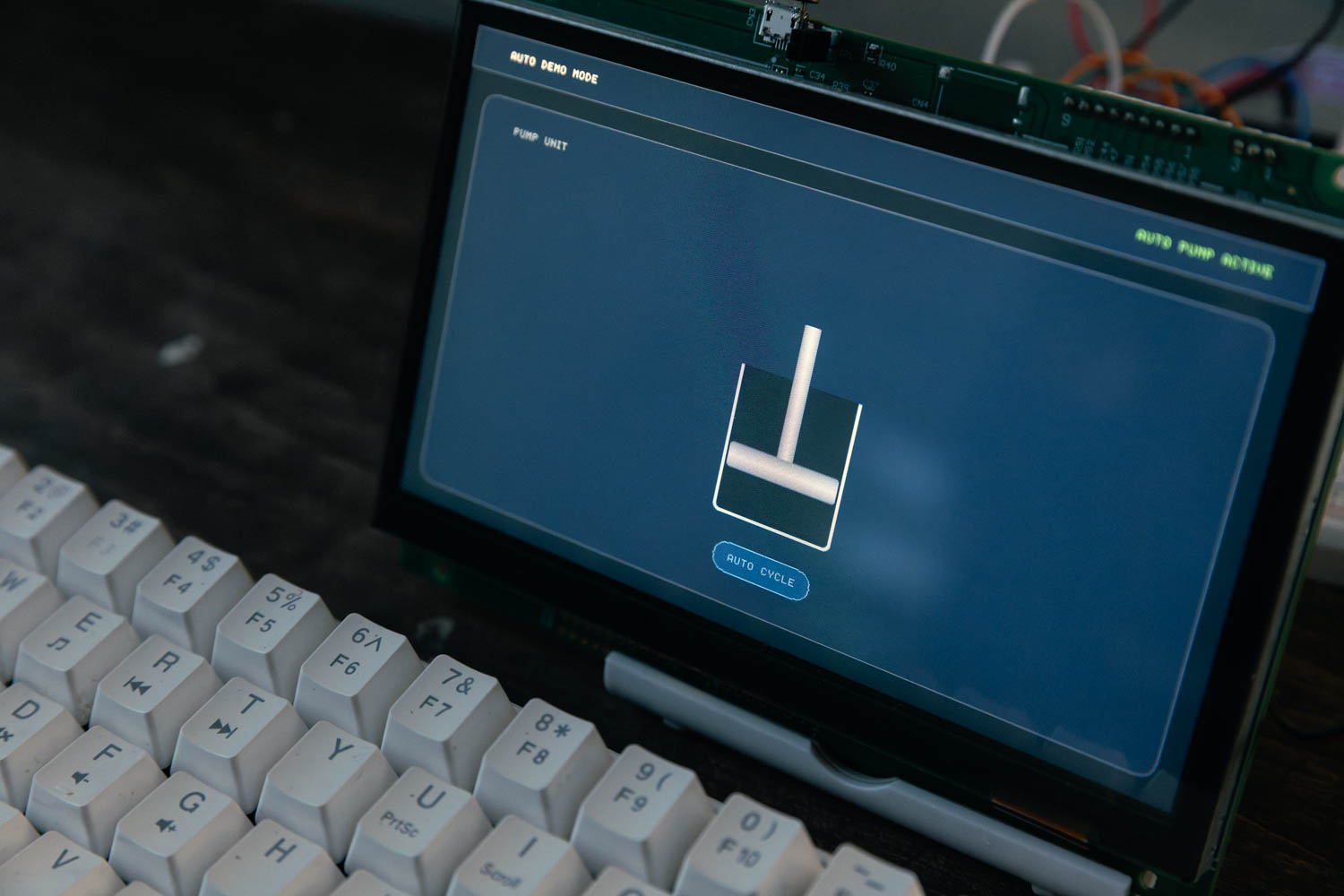
This time, we used autopompanimation_IMG.h generated by Build in GT Design Studio and specified the images to display on the GT-SP using definitions corresponding to the image file names.
In the previous article, we checked the image addresses listed in _IMG.csv and set them directly in the Arduino program.
This time, we used definitions corresponding to the original image file names, such as
GUI_DEF_IMG_pump_01_AD
instead of specifying the image address directly.
By using the image definition file, the images can be specified in the program using clear names instead of the image address values themselves.